Add and configure currencies
GLC lets you show prices in your customers' local currencies. Before you can add currencies, you need to set up currency formatting in Shopify. Then you can add, convert, and publish your currencies in GLC.
1. Set up currency formatting
GLC needs its own code in your Shopify currency formatting to recognize and convert the prices on your storefront. If you've already done this, skip to 2. Add and publish currencies.
-
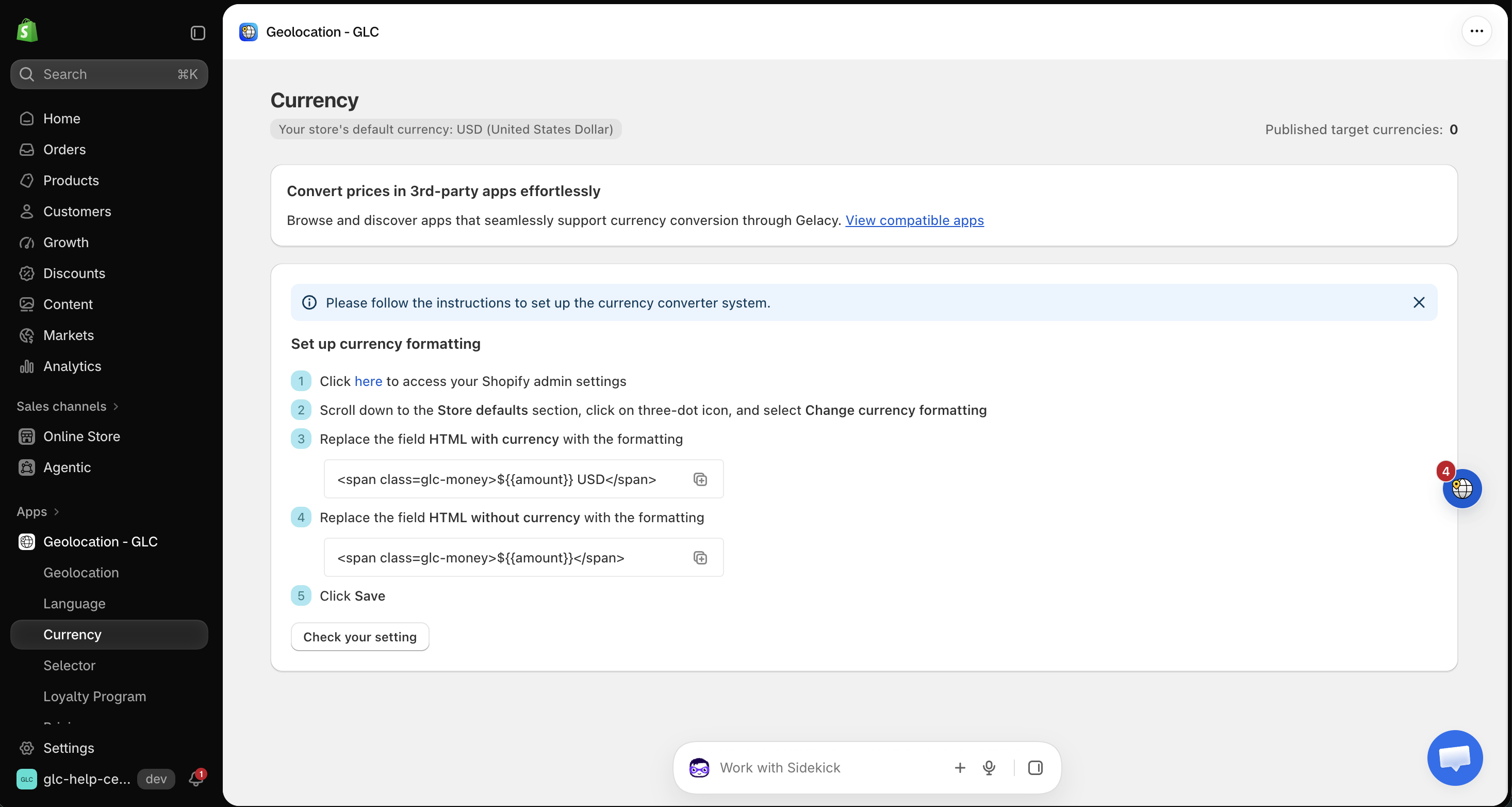
In GLC, go to Currency and open the Set up currency formatting guide.
-
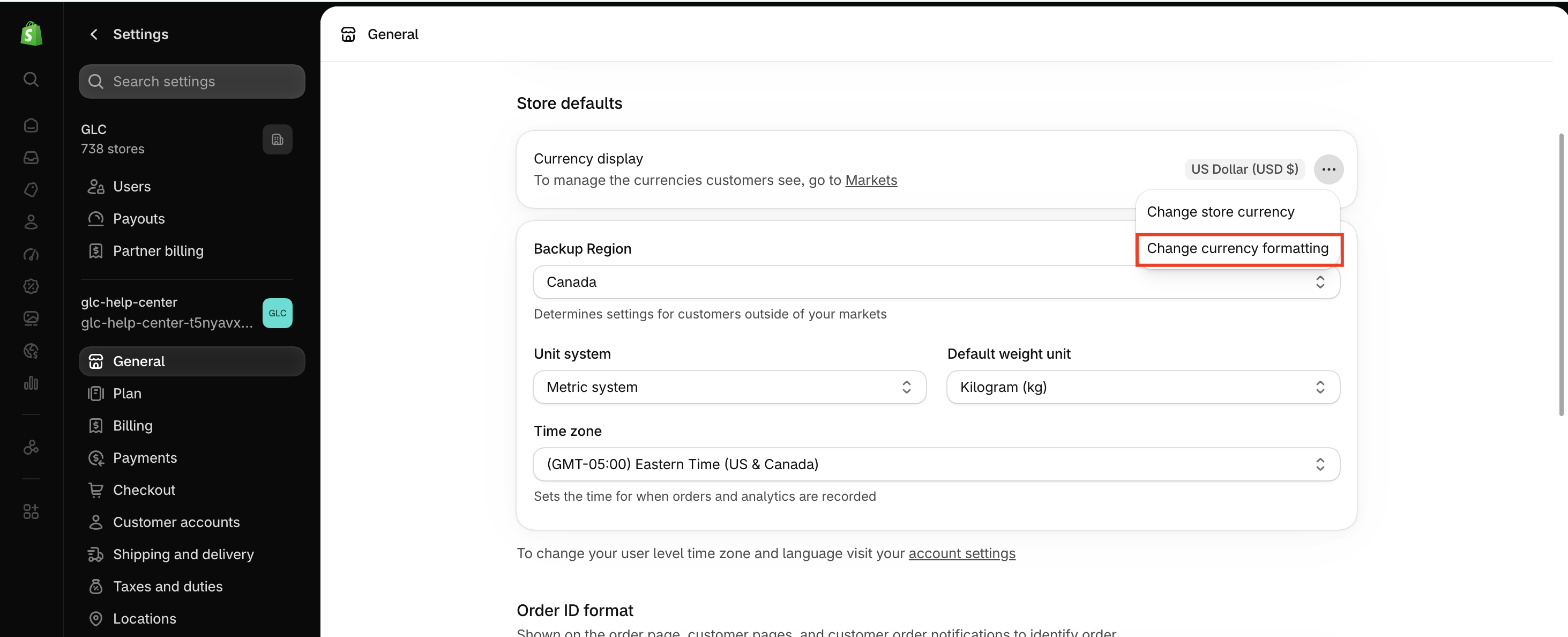
In your Shopify admin, go to Settings → General, or click here in step 1 of the guide. Scroll down to Store defaults, click ⋯ next to Currency display, then select Change currency formatting.
-
Replace the existing code in HTML with currency with the code from step 3 of the guide. Then replace the existing code in HTML without currency with the code from step 4 of the guide, and click Save.
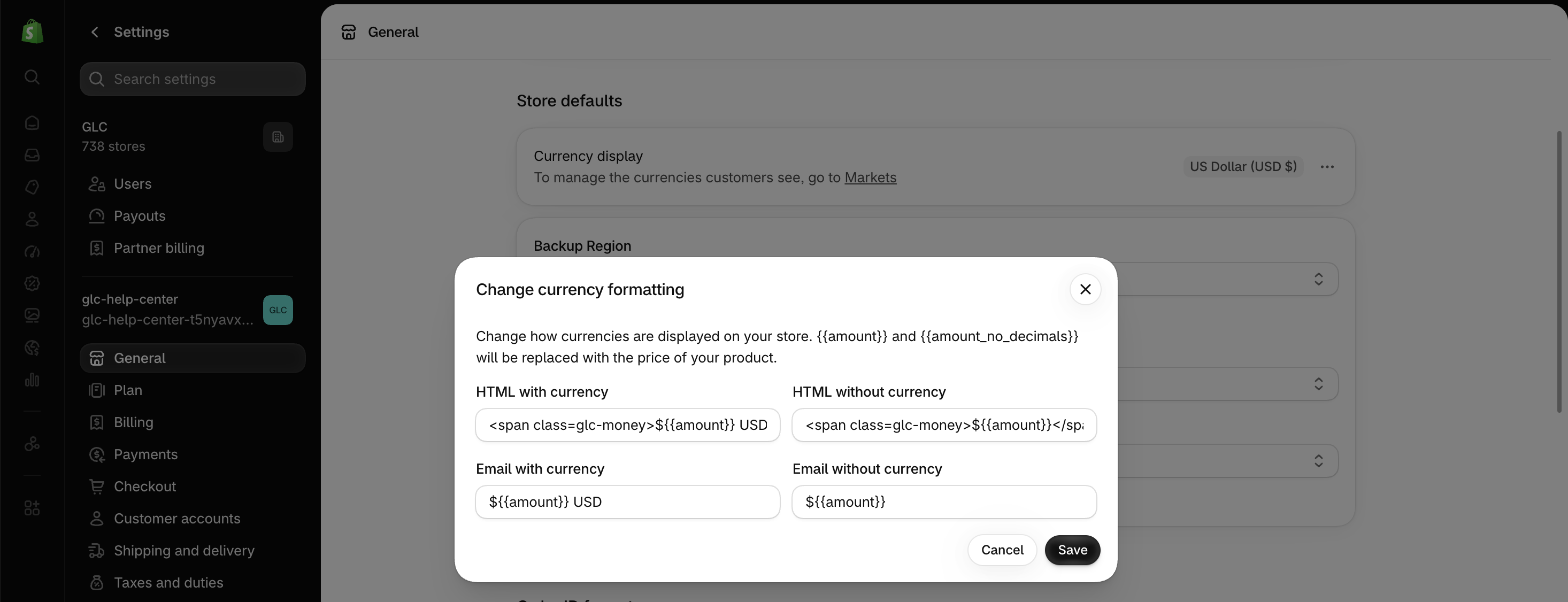
The codes are based on your store's default currency, so always copy them from your own GLC guide. You don't need to change the Email with currency or Email without currency fields.
-
Return to GLC and click Check your setting. If the check fails, make sure each code is in the correct field and that you saved your changes in Shopify.
2. Add and publish currencies
-
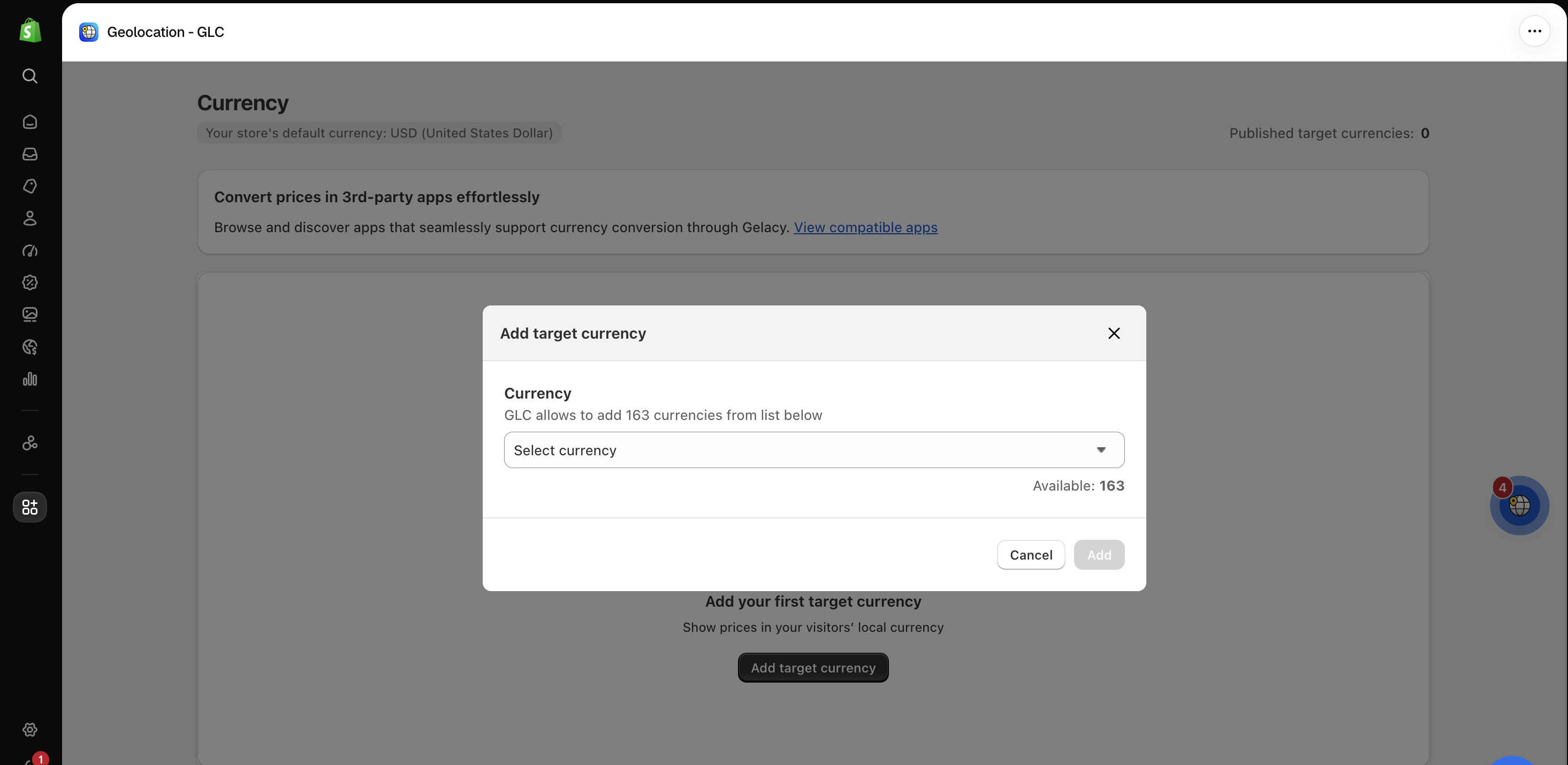
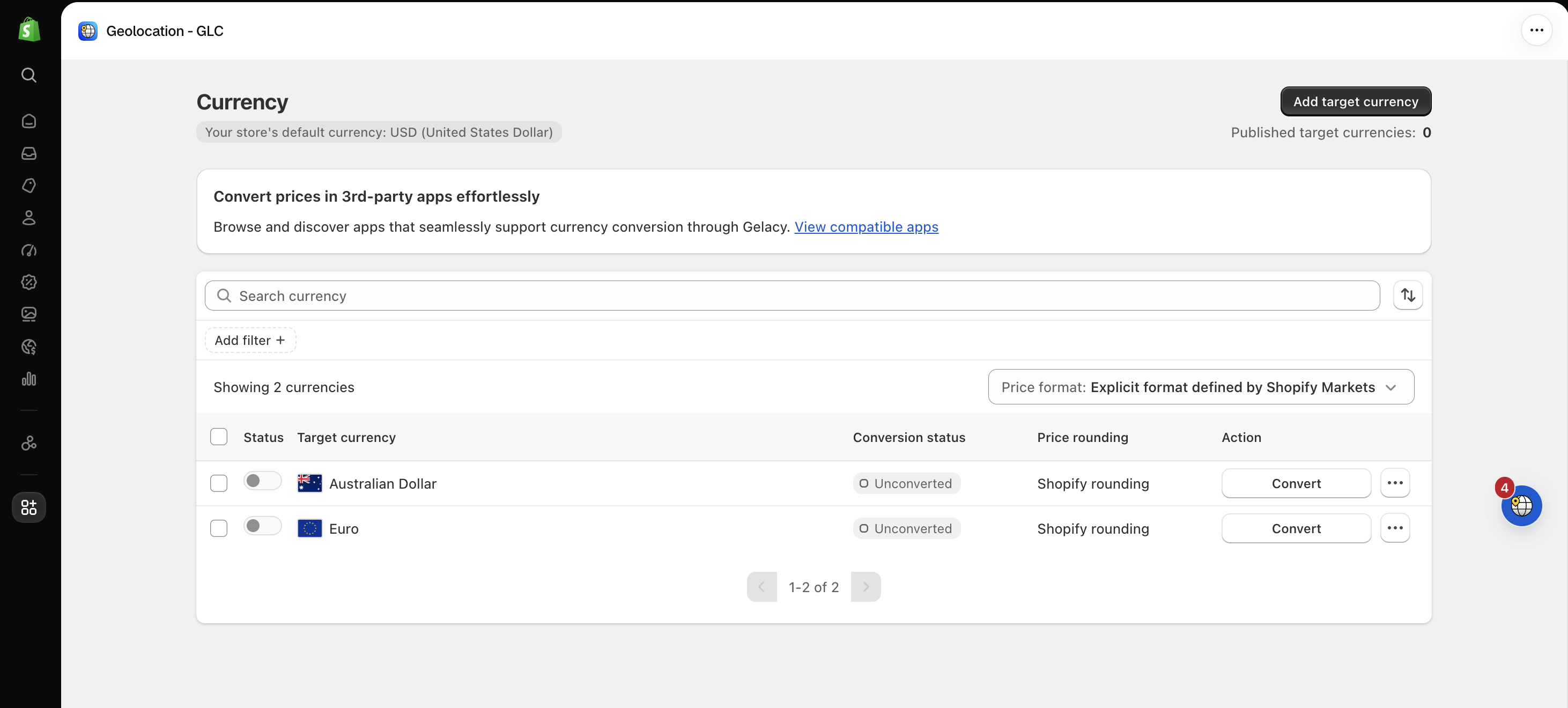
Add a currency: In GLC, go to Currency and click Add target currency. Select the currencies you want to offer, then click Add. The Available count shows how many more currencies you can add.
-
Convert it: Click Convert next to the new currency. Its conversion status changes from Unconverted to Converted.
-
Publish it: Turn on the Status toggle next to the currency to show it in your storefront selector. You can only publish a currency after it's converted. The Published target currencies count at the top of the page shows how many currencies are live. Your plan determines how many target currencies you can publish. To see what your plan includes, go to Pricing in GLC.
3. Set price rounding (optional)
After a currency is converted, the Convert button changes to Price rounding. Click it to choose how converted product prices and shipping rates are rounded, then click Save. By default, GLC follows the rounding rules configured in Shopify Markets.
To learn about each rounding option, see Configure price rounding.
Manage your currencies
- Publish or unpublish: Use the Status toggle next to a currency.
- Pin: Click ⋯ next to a currency and select Pin to keep it at the top of your list and selector.
- Remove: Click ⋯ next to a currency and select Remove.
- Bulk actions: Select several currencies, then choose Set as Published, Set as Unpublished, or Remove.
To learn how GLC converts prices and what customers see at checkout, see How currency conversion works in GLC.
If you're not sure how to set up the currency format, or a currency doesn't show on your storefront after you publish it, email us at support@gelacy.app. We'll help you get it working.