Edit translations
GLC uses auto-translation technology powered by the latest AI models to localize your store in a few minutes, and all newly added content is translated automatically without any further effort. However, AI is not perfect, and you might want to fine-tune some of the translated content.
This guide shows you where to find each type of content in Manage translation, how to edit it, and what to do when you can't find the text you want to change.
I. How to Edit Translations
Step 1: Open Manage translation
Go to Language and click Manage translation next to the target language.
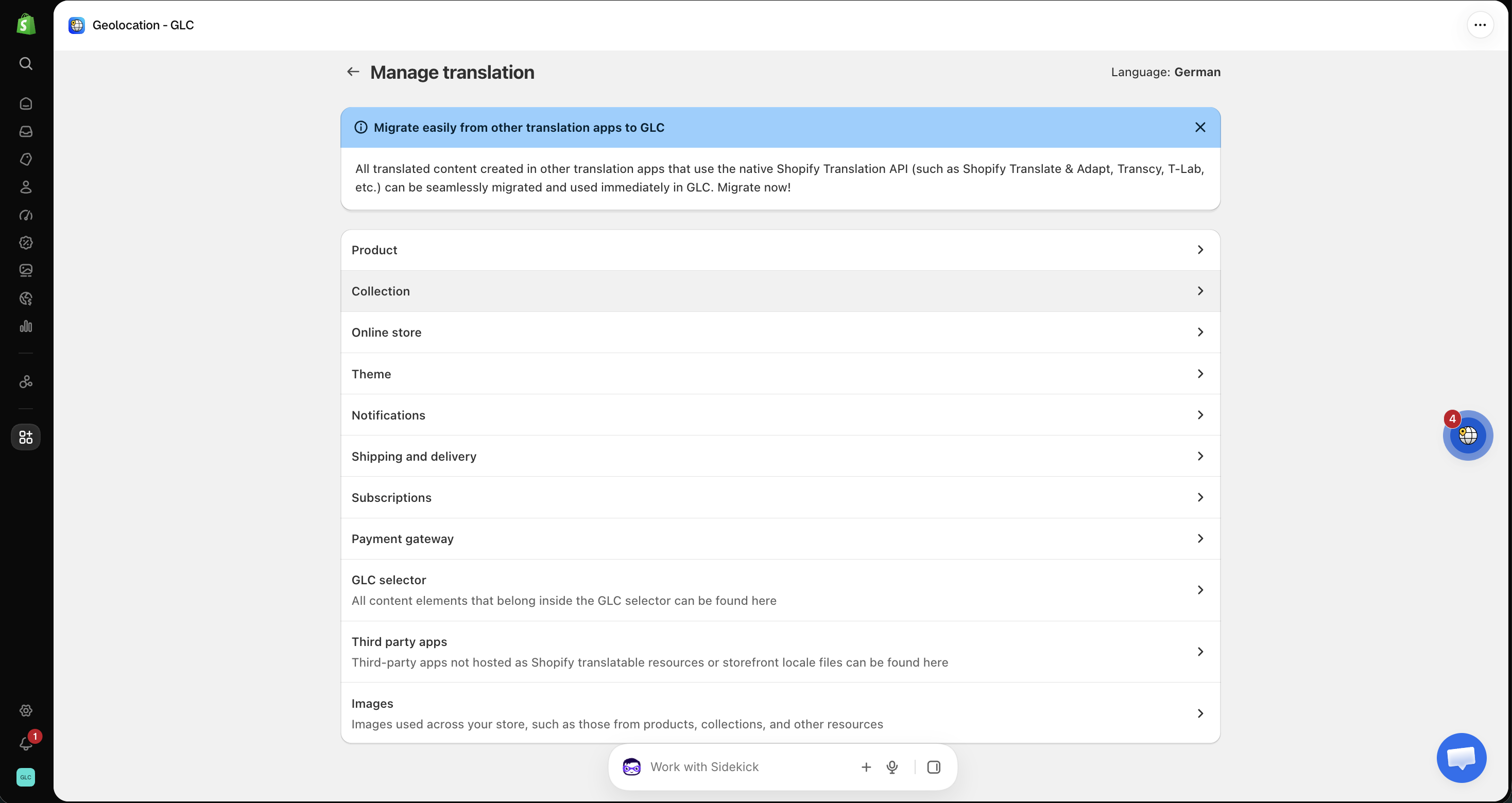
Step 2: Go to the corresponding section
GLC is built to work seamlessly with the Shopify Translation API, so your content is grouped by resource type, allowing you to quickly locate what you need:
- Product: Product titles, descriptions, option names and values (e.g. Size, Color), product types, URL handles, and SEO fields.
- Collection: Collection titles, descriptions, URL handles, and SEO fields.
- Online store: Blog posts, blogs, pages, navigation menus, links, filters, metaobjects, policies, and store metadata.
- Theme: Your theme's content, including the Home page, Cart page, and Checkout page. Content built in the Theme Editor, such as Rich text or Collapsible content blocks, is usually stored in Templates.
- Notifications: Shopify system messages and customer emails, such as order confirmations.
- Shipping and delivery and Payment gateway: Text displayed during checkout and order updates.
- Subscriptions: Text used in subscription flows.
- GLC selector: All text displayed within the GLC selector.
- Third party apps: Content from third-party apps that isn't hosted as Shopify translatable resources.
- Images: Localized images for each language. See Translate images.
Step 3: Edit the content and save
Click View details next to the item. Fields that are translated automatically show "Content is automatically translated by GLC. Click here to edit it manually". Click here, edit the content, and click Save to apply your changes.
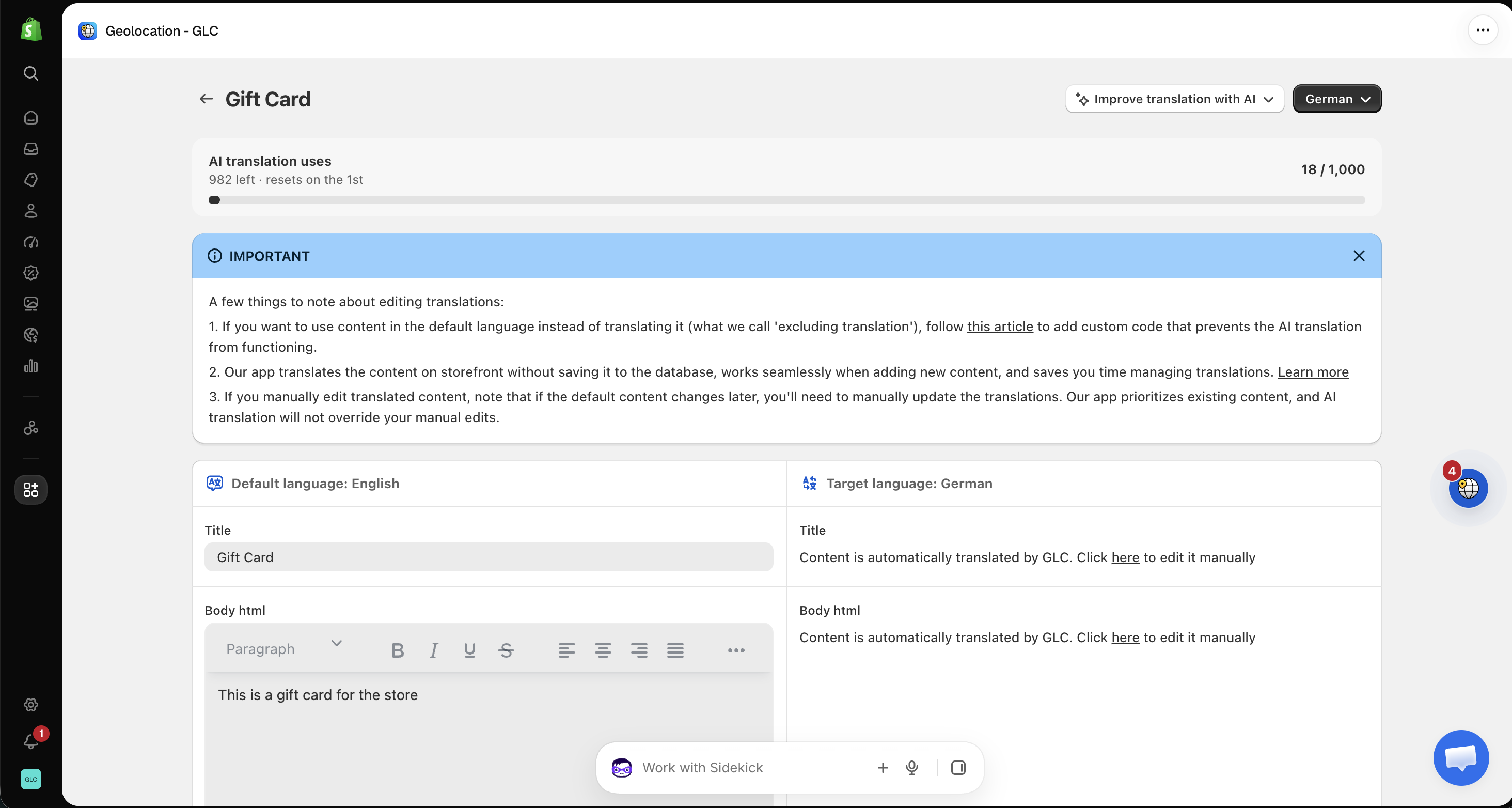
For product content, open the item under Product and click Improve translation with AI to generate a new translation. This option is available only in the Product resource. See Improve translation with AI.
Once you save a translation, it won't update automatically when the original content changes, so you'll need to update it yourself.
Step 4: Verify the changes
Re-check your storefront to confirm that the correct content is now displayed.
II. Translating Your Checkout Page
Providing a multilingual checkout experience is essential for serving international customers and improving conversion rates. To translate it, open Theme → Checkout page in Manage translation.
Due to Shopify's platform limitations, some content can't be translated on the checkout page:
- Third-party app content: Text added by third-party apps stays in your default language.
- Images: Customers see your original images at checkout, even if you've added translated images. See Translate images.
III. Can't Find the Text You Want to Edit?
Since Shopify stores content differently than how it appears on your storefront, some text (e.g. buttons, labels, or app-integrated text) can be harder to locate. In that case, note the page URL and the exact text, then send this information to us at support@gelacy.app and grant us staff or collaborator access to your store. Our technical team will find the source of the text and tell you exactly where it's stored.
For any other questions about editing your translations, email us at support@gelacy.app. We're always happy to help.