Create and manage Geo Promotions
Geo Promotion allows you to deliver highly relevant, localized offers to visitors based on their country or region. It is designed to help merchants improve conversion rates, increase engagement, and create a more localized shopping experience for international customers.
I. What Is a Geo Promotion?
A Geo Promotion is a location-based campaign that displays customized promotional content to visitors depending on their country or region. This is especially useful for global businesses that want to highlight region-specific offers without creating multiple separate campaigns.
Geo Promotion is displayed as a dedicated section inside the Geolocation recommendation modal. When a customer visits your store, GLC detects their location and shows the promotion that matches their country. By showing relevant offers at the moment visitors confirm or view their location, you can increase engagement and provide a more personalized experience across different markets.
Before you start:
- Geo Promotions appear in the recommendation modal, so make sure Show a recommendation modal is selected in your Geolocation preference. See Set up geolocation.
- The number of active promotions depends on your plan. To see what your plan includes, go to Pricing in GLC.
- To keep the experience clear and focused, each country can display only one promotion at a time.
II. Promotion Types
Promotions can include:
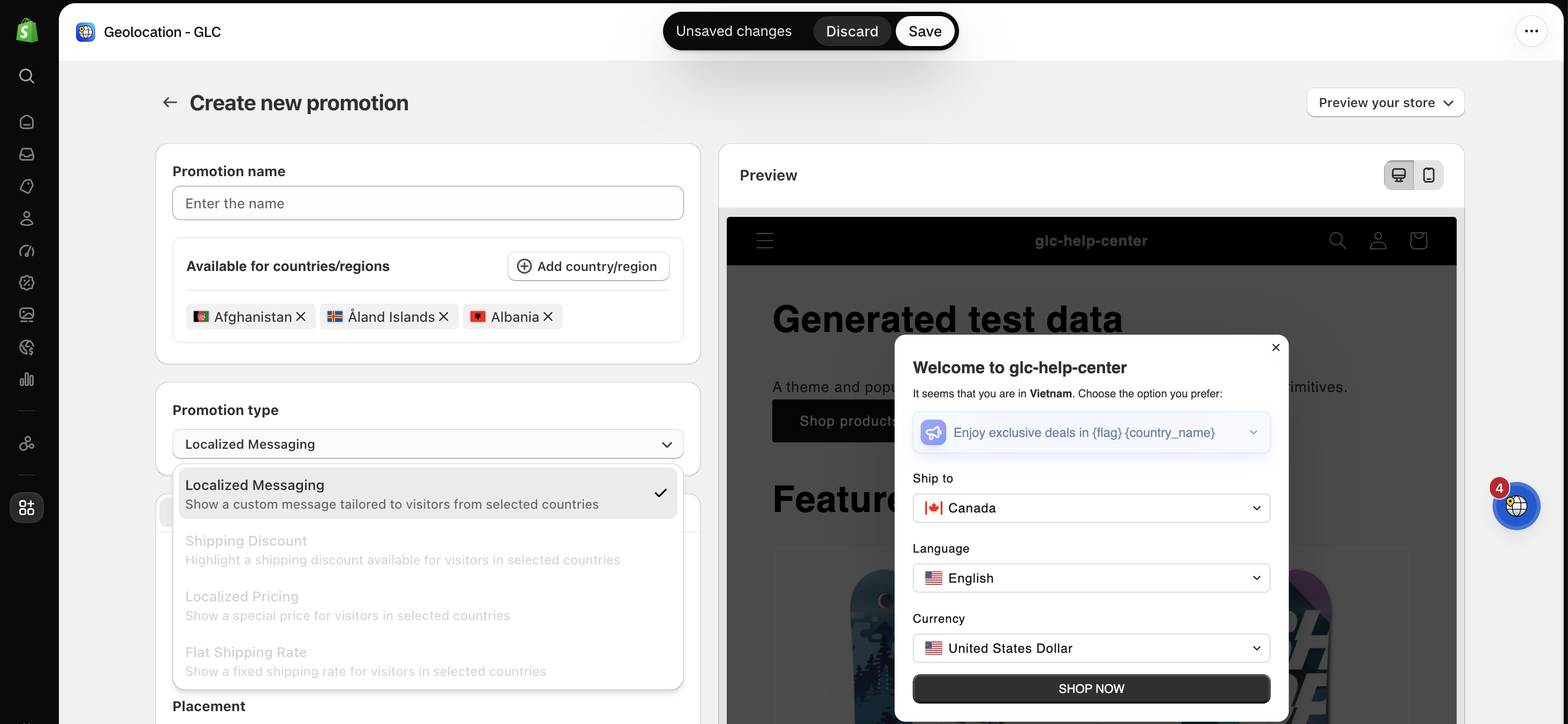
- Localized Messaging: Show a custom message tailored to visitors from selected countries.
- Shipping Discount: Highlight a shipping discount available for visitors in selected countries.
- Localized Pricing: Show a special price for visitors in selected countries.
- Flat Shipping Rate: Show a fixed shipping rate for visitors in selected countries.
Some promotion types are only available when your market and shipping settings support them.
III. How to Create a Geo Promotion
Step 1: Create a new promotion
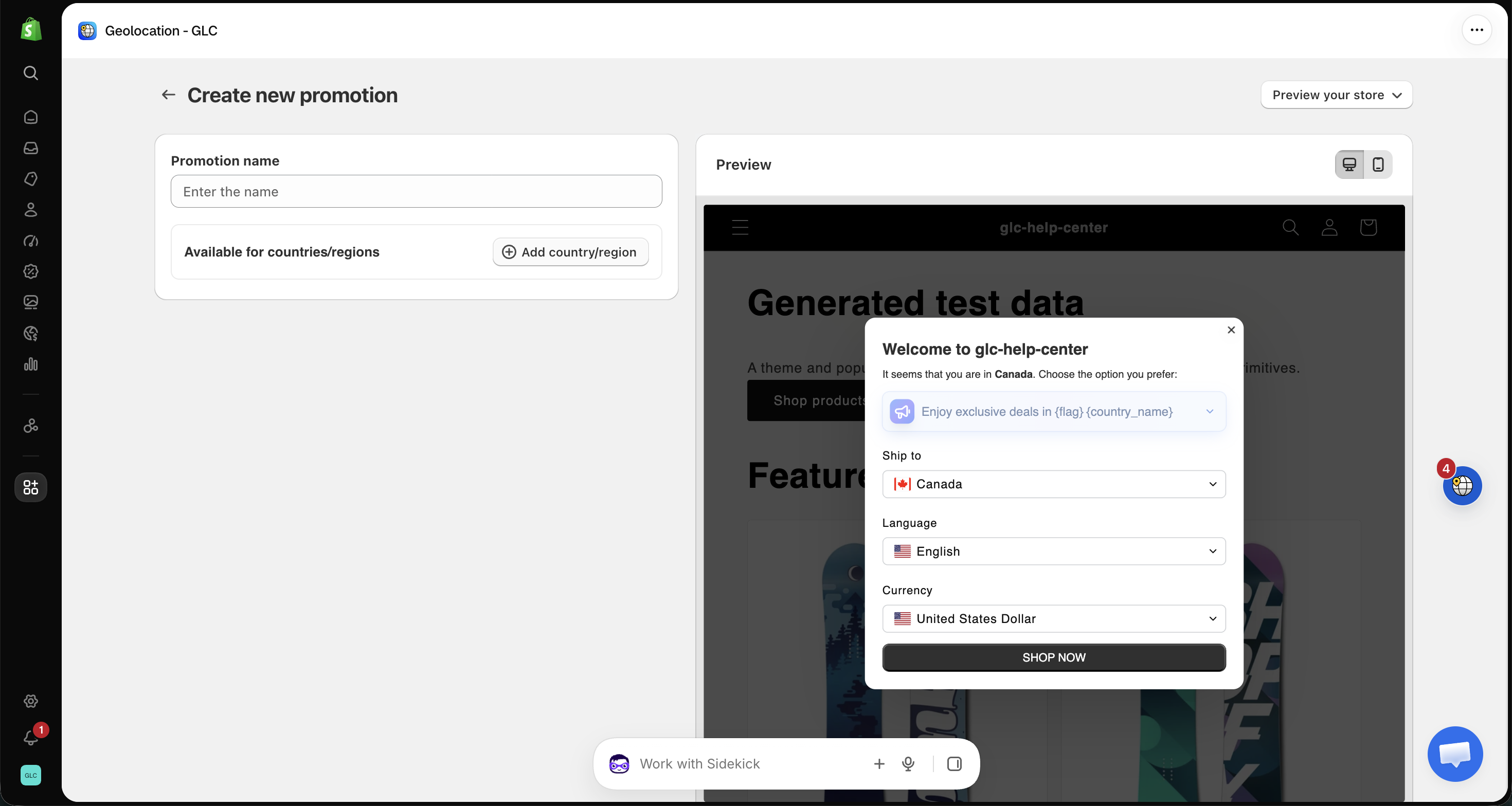
Go to Geolocation → Promotions and click Add promotion. You will first be asked to enter a Promotion name.
Step 2: Select available countries or regions
Under Available for countries/regions, click Add country/region and select the locations where the promotion should be displayed. You can filter the list by All, In Active markets, or Not in any markets.
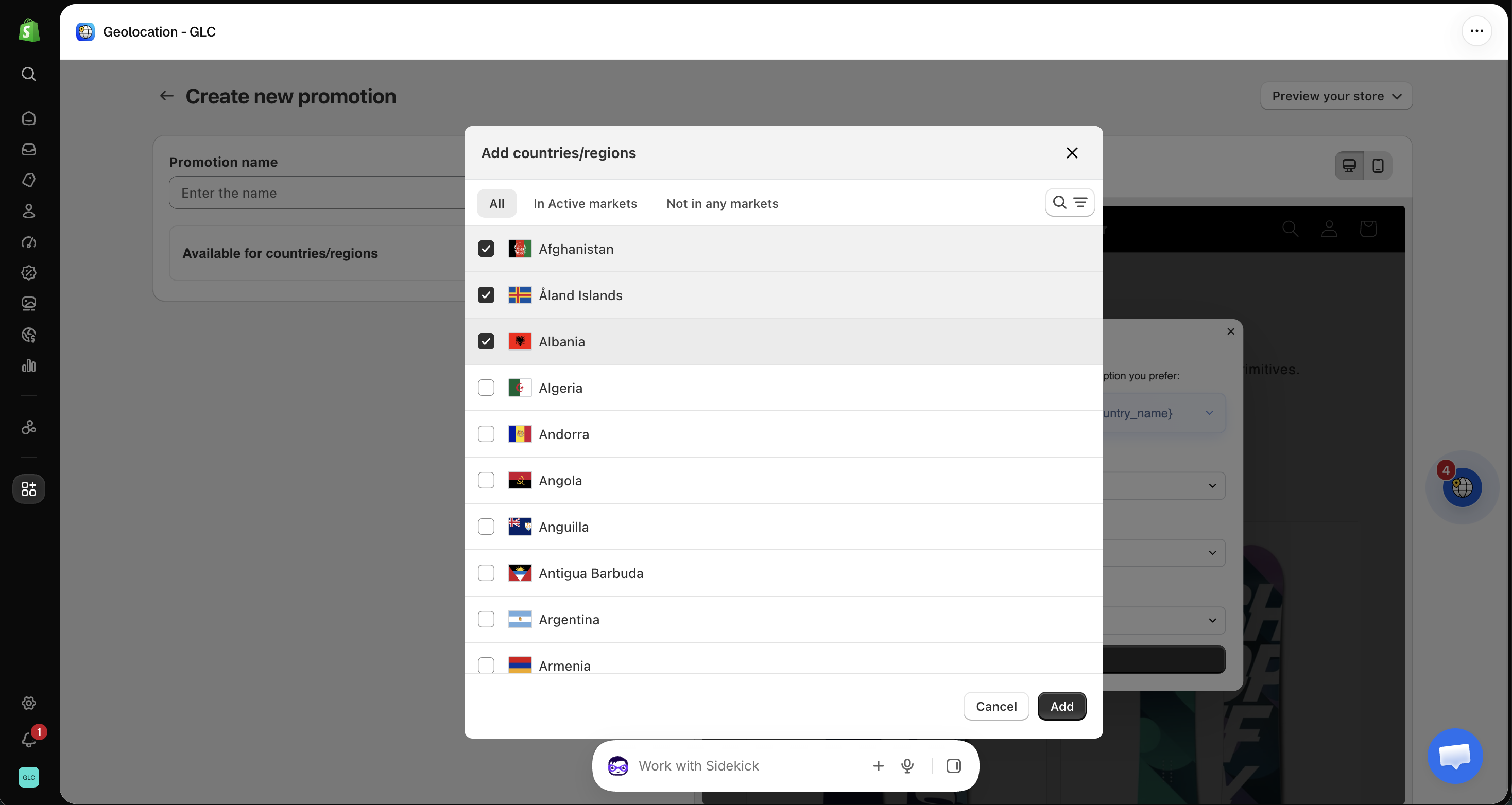
For example, if you select France, only visitors browsing your store from France will see this promotion. You can add or remove countries at any time, giving you full flexibility over your campaign's reach.
Step 3: Choose the promotion type
Next, select the Promotion type. For location-based messages, choose Localized Messaging. This option enables dynamic content that automatically adapts to the visitor's country, language, and currency.
Step 4: Configure appearance settings
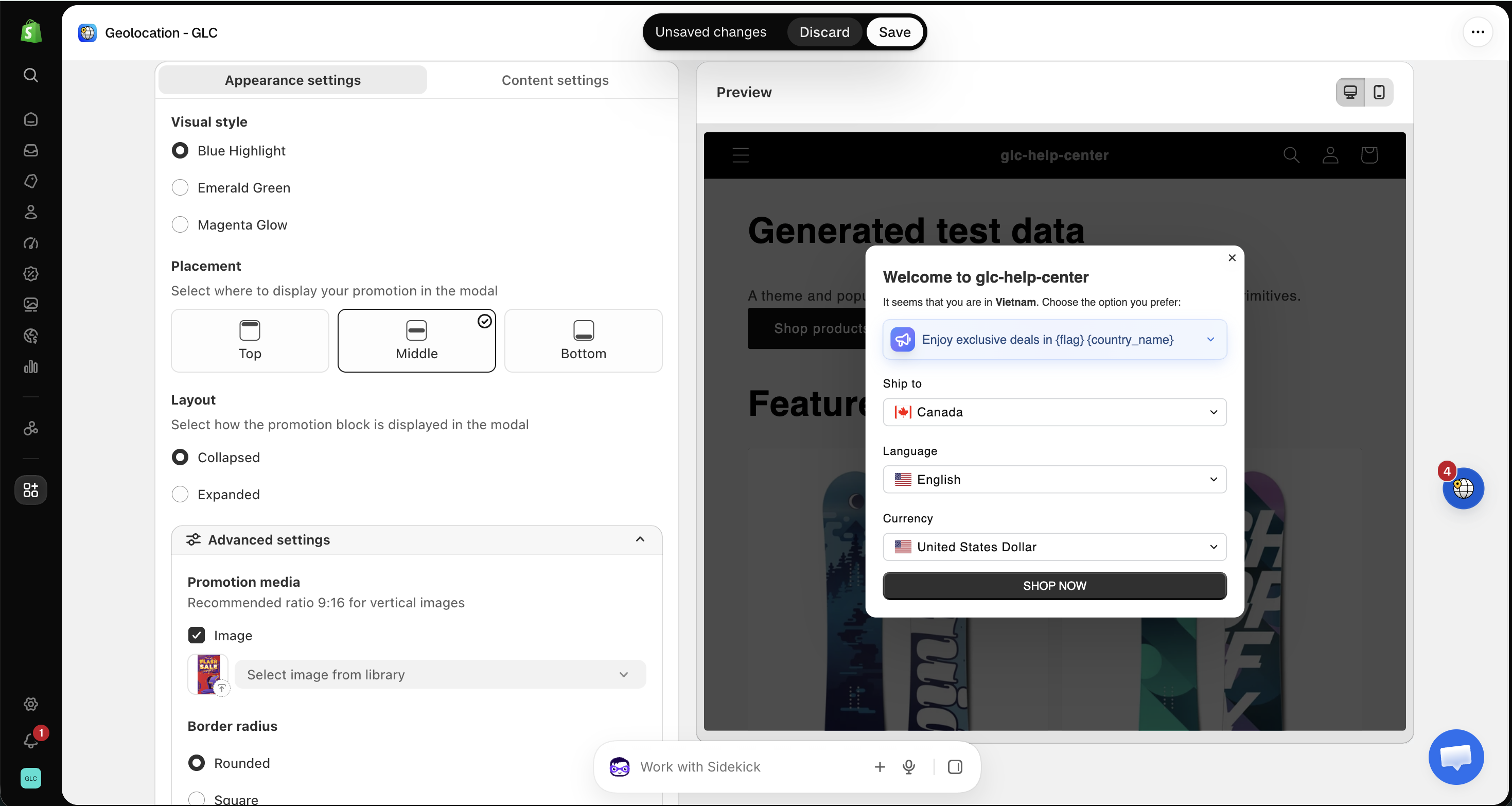
On the Appearance settings tab, customize how your promotion looks:
- Visual style: Choose Blue Highlight, Emerald Green, or Magenta Glow.
- Placement: Select where to display your promotion in the modal: Top, Middle, or Bottom.
- Layout: Select how the promotion block is displayed in the modal: Collapsed or Expanded.
- Advanced settings: Add Promotion media from your image library (a 9:16 ratio is recommended for vertical images) and choose the Border radius.
Step 5: Configure content settings
On the Content settings tab, write your promotion:
- Title: You can insert the variables
{flag},{country_name},{language}, and{currency}, for example "Enjoy exclusive deals in{flag}{country_name}". - Label for badge: A short label that grabs attention, such as "Limited-time offer".
- Body content: Your promotion message, up to 160 characters.
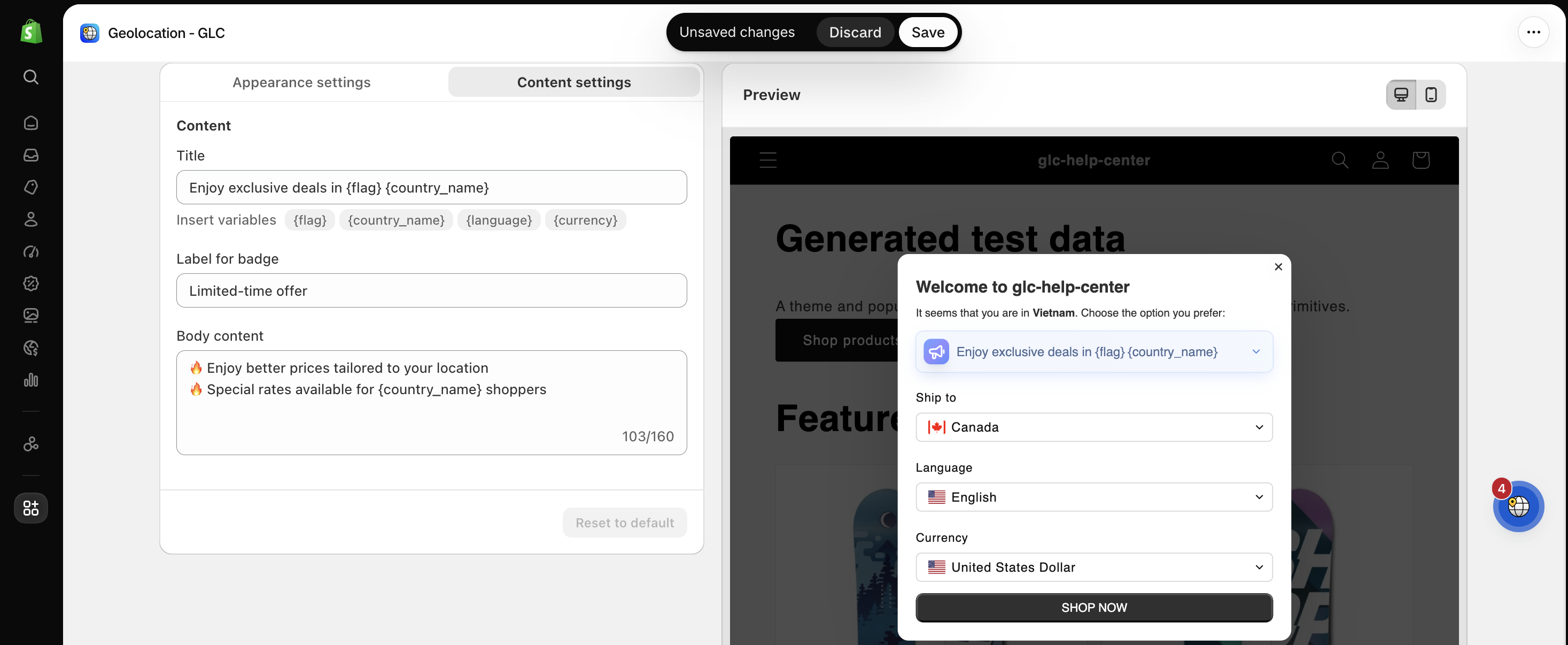
Step 6: Save
Review your promotion in the Preview, then click Save.
IV. How to Manage Geo Promotions
All your promotions are listed in Geolocation → Promotions, where you can:
- Turn a promotion on or off with the Status toggle.
- Click Edit to update a promotion.
- Delete promotions you no longer need.
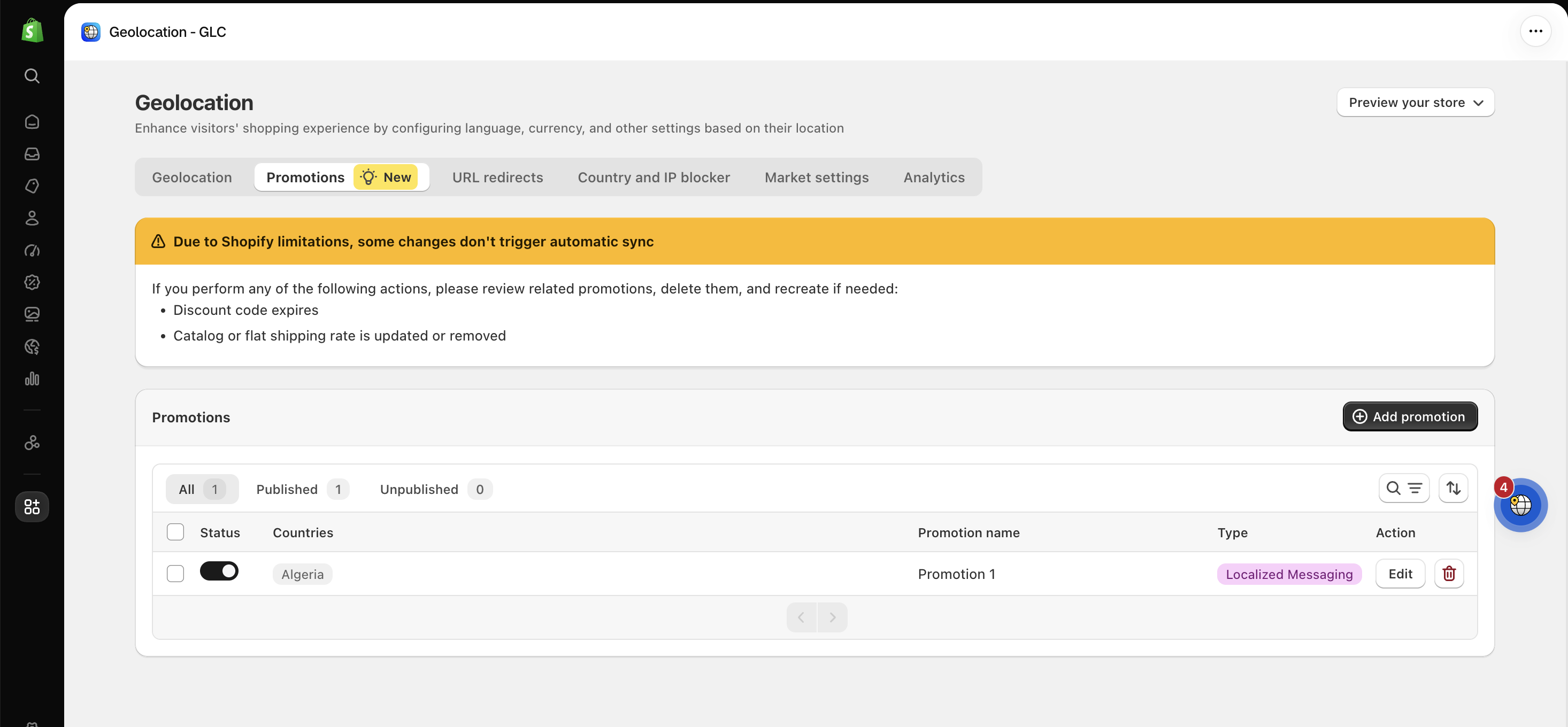
Due to Shopify limitations, some changes don't trigger an automatic sync, such as when a discount code expires, or when a catalog or flat shipping rate is updated or removed. If you make any of these changes, please review the related promotions, delete them, and recreate them if needed.
If you're not sure how to set up an offer for a specific country, or a promotion doesn't appear in the recommendation modal, email us at support@gelacy.app. We'll help you get your promotion live.